
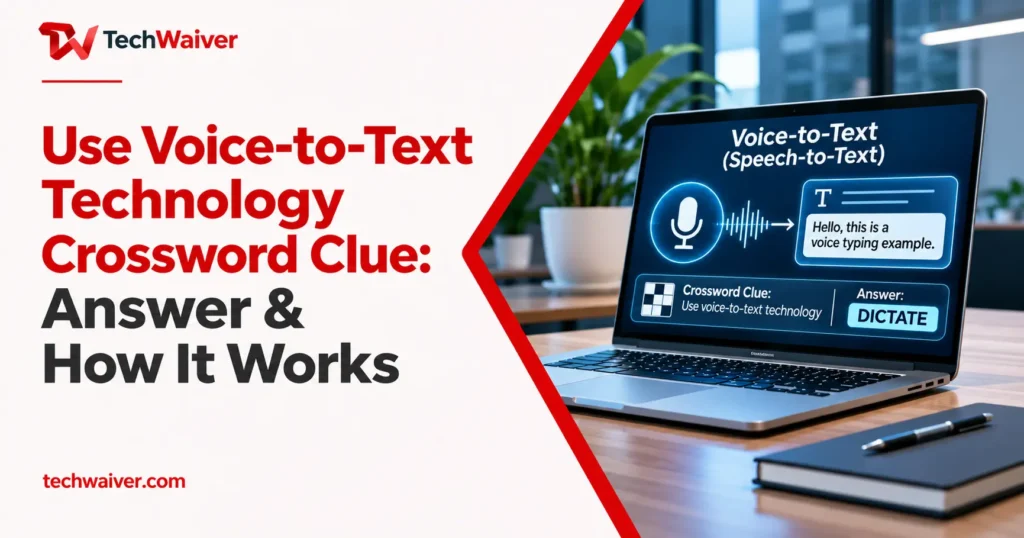
Do you need the solution for the clue “Use voice-to-text technology” in the crossword puzzle? The answer is DICTATE, which consists of seven letters. It means speaking words out loud in order to convert them into text with the help of speech recognition programs.
Voice-to-text technology not only helps to solve crossword puzzles but is also applicable in other cases when one needs to compose messages, documents, or enter text.
There are voice typing programs such as Google Docs and Windows 11, which can assist in doing so. Let’s discuss the crossword answer, learn about the principle of speech-to-text technology and its use on a PC.
What Is the Answer to the “Use Voice-to-Text Technology” Crossword Clue?
The solution to the “Use voice-to-text technology” crossword clue is DICTATE and consists of seven letters. To dictate means to talk out loud and thus make your words heard and put them down.
This corresponds to the clue, as it refers to voice-to-text technology that enables people to use a microphone to talk so that software can hear words and write them down.
There is no need to type a sentence using a keyboard, as all one has to do is speak it and have the device write it. The clue’s solution has been used in crosswords before, including the November 5, 2026, LA Times puzzle.
What Is Voice-to-Text Technology?
Voice-to-text technology refers to a type of technology that translates spoken language into text. This is done by the use of speech recognition software that listens to the words and then displays them on the computer screen.
For instance, consider the scenario where one has to type an extensive email. Rather than typing everything, he/she can just use the voice-to-text program and dictate whatever he/she needs to say. Afterward, the system will transcribe the voice into text for editing purposes.
This is a helpful technology for those who are students, writers, and office workers among others.
How Does Speech-to-Text Technology Function?
Speech-to-text technology goes through the following stages for translating spoken words into written text.
Recording your voice: Your spoken words get recorded by a microphone.
Processing audio signals: The technology processes the audio signals and detects speech patterns.
Recognizing words: AI algorithms identify the words using the recorded sounds.
Transforming speech into written text: The identified words appear on your screen in the form of text.
Proofreading the result: You can proofread the result for any errors in spelling, grammar, and misunderstood words.
The modern technologies can even use the context for making sentences better understandable, for example, determining if you meant “write” or “right.”
How to Use Voice Typing in Google Docs
Google Docs includes a built-in voice typing feature that lets you write documents by speaking. You don’t need to install a separate typing application to use it.
Follow these steps:
- Open Google Docs in Chrome, Edge or Safari.
- Create a new document or open an existing one.
- Select Tools from the top menu.
- Click Voice typing.
- Allow microphone access if your browser requests it.
- Click the microphone icon and start speaking.
Your spoken words will appear in the document as text. You can also use supported voice commands to edit text and add punctuation.
To use voice typing in Windows 11, you need a working microphone and an internet connection. When you finish dictating, you can stop it by saying “Stop listening” or clicking the microphone button. Windows 11 also lets you choose your preferred language for voice typing. You can change this anytime in your computer’s language settings.
How to Use Voice Typing in Windows 11
Windows 11 has a built-in voice typing feature that lets you enter text in different applications. You can use it in text boxes, email applications, and document editors.
Here’s how to get started:
- Open the application where you want to type.
- Click inside the text box or document.
- Press Windows key + H on your keyboard.
- Wait for the voice typing panel to appear.
- Start speaking when the system shows that it is listening.
- Check the text and correct any mistakes.
You need a working microphone and an internet connection for Windows 11 voice typing. You can stop dictation by saying “Stop listening” or selecting the microphone button. Windows 11 also lets you choose the language you want to use for voice typing. If you want to change it, simply open your computer’s language settings and select your preferred language.
Common Uses of Voice-to-Text Technology
Voice-to-text technology is useful in many everyday situations, not just when writing documents. It gives people another way to enter text and makes some writing tasks quicker and easier.
Here are a few common ways people use it:
- Writing emails: You can dictate an email instead of typing every sentence. This is especially helpful when you have a long message to write.
- Taking notes: Students can use voice typing to record ideas during study sessions or prepare quick notes.
- Creating documents: Writers and office workers can speak their first drafts and edit the text afterward.
- Sending messages: Smartphone users can dictate text messages when typing is inconvenient.
- Adding captions: Speech recognition tools can turn spoken words in videos into text captions, making content easier to follow.
Voice typing can also help people who find regular keyboard use difficult. However, it is important to remember that speech recognition does not always understand every word correctly. Background sounds, fast speech, and unfamiliar names can lead to mistakes. For better results, speak clearly, use a quiet place, and review the text before sharing or saving it.
As these tools continue to improve, voice-to-text technology is becoming a useful part of everyday communication and writing.
Advantages of Utilizing Voice-to-Text Software
The following are some advantages of utilizing voice typing:
Time-saving: Dictating can sometimes be faster compared to typing, especially when it comes to lengthy texts.
Less need to type: You will be able to type without having to repeatedly use the keyboard.
Accessibility tool: It serves those individuals that have trouble with typing.
Multi-tasking ability: One can dictate reminders and notes while working on another task at the same time.
Helps with writing process: It makes it easier for students and professionals to create a written draft from verbal communication.
Nevertheless, voice recognition technology may sometimes have challenges. They include background noise and the issue of unclear pronunciation and unknown vocabulary words.
Final Thoughts
For the “Use voice-to-text technology” crossword clue, the answer is DICTATE. In addition to giving an answer to the clue, this term refers to a helpful feature that assists in easy writing through speech recognition.
Voice typing will assist you in drafting documents, writing texts, and expressing your thoughts regardless of whether you use Google Docs or Windows 11. Do not forget to proofread the text for accuracy.
FAQs:
The answer is DICTATE, which has seven letters. It means speaking words aloud so they can be converted into written text.
Yes. Both terms describe technology that converts spoken words into written text. They are commonly used interchangeably.
Yes. Google Docs offers a built-in voice typing feature that you can use without purchasing a separate dictation application.
Yes. Windows 11 includes voice typing, which you can activate by pressing the Windows key + H. It allows you to enter text by speaking instead of typing.